> ## Documentation Index
> Fetch the complete documentation index at: https://docs.asserto.ai/llms.txt
> Use this file to discover all available pages before exploring further.
# Mock Tool Use
> Mock LLM tool calls and responses for testing longer interactions through the UI
## Introduction
Mock Tool Use allows you to simulate LLM tool calls and their responses without executing the actual tools. This feature is available both in the Playground for interactive testing and in Test Case definitions for automated testing.
When you define a mock tool use, you specify the tool name, arguments, and expected result in a single form. Asserto automatically translates this into two separate messages in the conversation flow: the tool call and the tool result.
## Adding Mock Tool Use
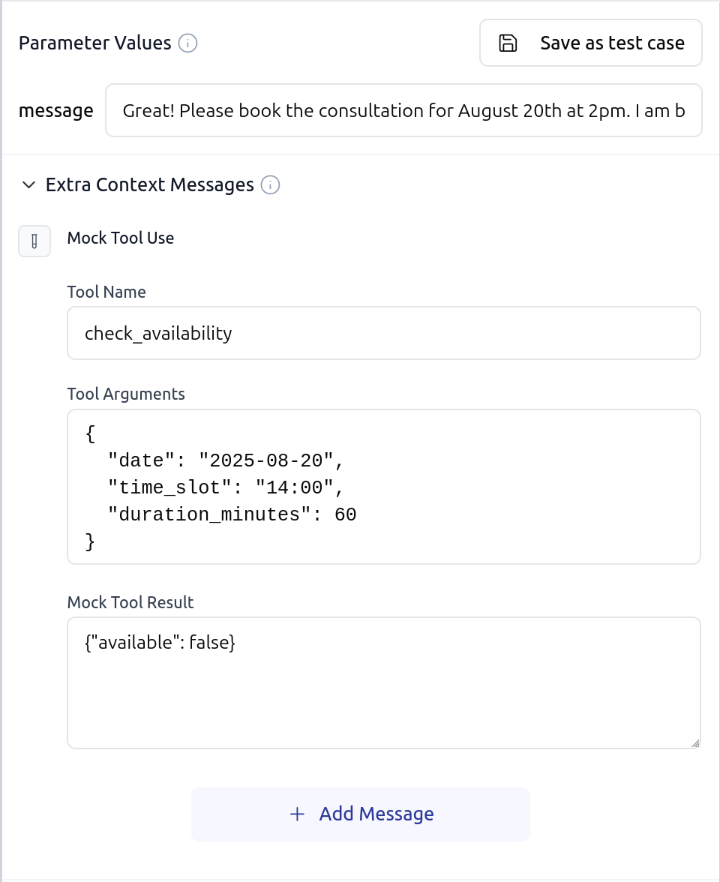 To add mock tool use, fill in three fields:
* **Tool Name**: The name of the tool being mocked (e.g., `check_availability`)
* **Tool Arguments**: The arguments in JSON format that the LLM would pass to the tool
* **Mock Tool Result**: The response (JSON or plain text) that will be returned to the LLM
## Example
As shown in the form above, a mock tool use for checking availability might look like:
**Tool Name:** `check_availability`
**Tool Arguments:**
```json theme={null}
{
"date": "2025-08-20",
"time_slot": "14:00",
"duration_minutes": 60
}
```
**Mock Tool Result:**
```json theme={null}
{"available": false}
```
## In Test Cases
To add mock tool use, fill in three fields:
* **Tool Name**: The name of the tool being mocked (e.g., `check_availability`)
* **Tool Arguments**: The arguments in JSON format that the LLM would pass to the tool
* **Mock Tool Result**: The response (JSON or plain text) that will be returned to the LLM
## Example
As shown in the form above, a mock tool use for checking availability might look like:
**Tool Name:** `check_availability`
**Tool Arguments:**
```json theme={null}
{
"date": "2025-08-20",
"time_slot": "14:00",
"duration_minutes": 60
}
```
**Mock Tool Result:**
```json theme={null}
{"available": false}
```
## In Test Cases
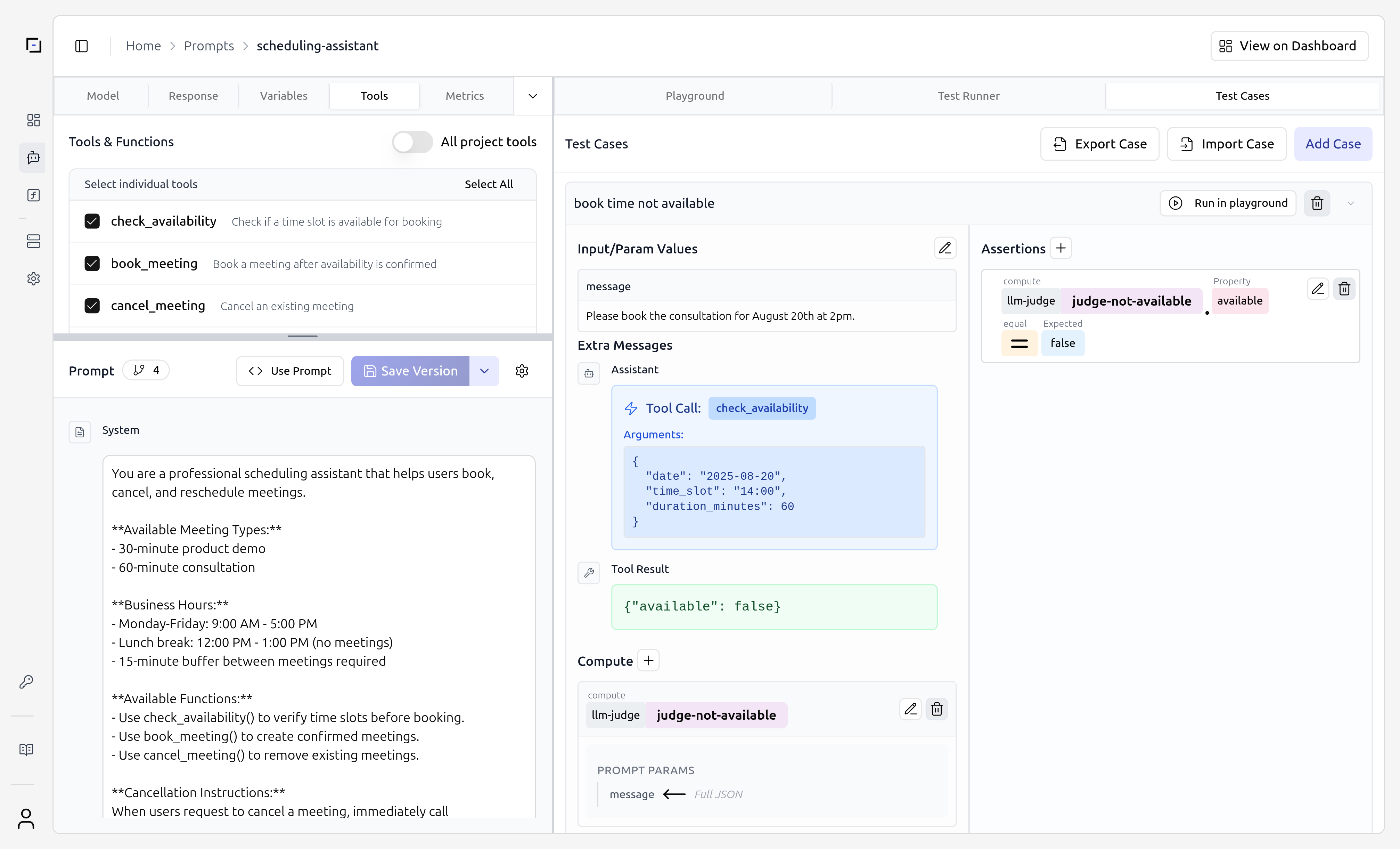 When used in test cases, the mock tool use appears as part of the conversation flow:
1. **Tool Call** section shows the tool name and arguments
2. **Tool Result** section displays the mocked response
The mocked tool responses are added as messages in the conversation context, allowing you to test complex workflows and longer interactions without executing actual tools.
When used in test cases, the mock tool use appears as part of the conversation flow:
1. **Tool Call** section shows the tool name and arguments
2. **Tool Result** section displays the mocked response
The mocked tool responses are added as messages in the conversation context, allowing you to test complex workflows and longer interactions without executing actual tools.